
March 30, 2026
Enhancements:
-
Table Seating:
-
This feature is available with a Full Suite License and an active ticket page.
-
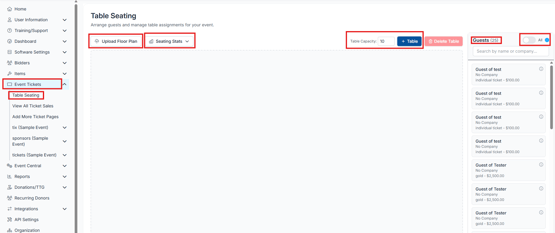
This tool helps you visually assign guests to tables for your event. Instead of manually typing table names, you can use an interactive seating chart to organize guests quickly and clearly.
-
Located under Event Tickets: Table Seating
-
Do not use this tool if you already have tables assigned. Using it will remove all existing table assignments.
-
For more information on this feature and how to use it please see the How-to-article and video.
-
-
Peer-To-Peer:
-
Added the ability to customize the email sent to the campaign creator after their campaign is created. This can be found under Software Settings → Auction Settings → Peer to Peer Settings.
-
Added the ability to customize an activation email to sent the items QR code & Item Share link to the campaign creator under Items>Manage Items.
-
Email Bidders: Added a filter for 'Peer To Peer Campaign Creators' that will allow you to send an email from this location as well.
-
For better reporting check out the Post Event Data report under the Donations tab.
-
Added the option to add multiple cumulative total bars in one content area.
-
Displays as bars or circles
-
-
Content Bar: Image/Text Split: added a gallery so you can add multiple images.
-
For more information please see the How-to-article and video
-
- Email bidders: Composed Email: Change "Sent to" drop down list to a paginated and searchable list
- Text bidders: Composed texts: Change "Sent to" drop down list to a paginated and searchable list
- Guest update link: To be consistent with the ticket page when adding a guest: Do not allow a guest record to have the same phone/email as another guest
- API settings updates:
- Endpoints Added
- Bids
- GET /events/{event}/bids - List bids
- POST /events/{event}/items/{item}/bids - Place a bid
- Content Blocks
- GET /events/{event}/content-blocks/types - List block types
- PATCH /events/{event}/content-blocks/reorder - Reorder blocks
- PATCH /events/{event}/content-blocks/{contentBlock}/settings - Update block settings
- GET /events/{event}/content-blocks/{contentBlock}/images - List block images
- POST /events/{event}/content-blocks/{contentBlock}/images - Upload block image
- DELETE /events/{event}/content-blocks/{contentBlock}/images/{image} - Del block img
- Bidapp Settings
- GET /events/{event}/bidapp-settings - Get settings
- PATCH /events/{event}/bidapp-settings - Update settings
- GET /events/{event}/bidapp-settings/images - List images
- POST /events/{event}/bidapp-settings/images - Upload image
- DELETE /events/{event}/bidapp-settings/images/{image} - Delete image
- Bidder External IDs
- GET /events/{event}/bidders/{bidder}/externalIds - Get external IDs
- PUT /events/{event}/bidders/{bidder}/externalIds - Update external IDs
- PATCH /events/{event}/bidders/{bidder}/externalIds - Update external IDs
- DELETE /events/{event}/bidders/{bidder}/externalIds - Delete external IDs
- Item Consignment
- GET /events/{event}/items/{item}/consignment - Get consignment
- PUT /events/{event}/items/{item}/consignment - Update consignment
- PATCH /events/{event}/items/{item}/consignment - Update consignment
- DELETE /events/{event}/items/{item}/consignment - Delete consignment
- Bids
- Endpoints Updated
- PUT /events/{event}/bidders/{bidder} - Can now add emails/phones inline (not just update existing)
- POST /events/{event}/bidders/{bidder}/phones - Normalizes phone numbers before duplicate checking
- POST /events/{event}/items - Removed inline image upload (use dedicated image endpoint instead)
- GET /events/{event}/items/{item}/appealSettings - Removed show action (index only now)
- For more information see the updated API Documentation
- Endpoints Added
- Organization> Navigation area will include the renewal date to the 'Renew Now' and If payment pending adding Payment Pending along with the renewal date
- Donations/TTG>Manage Donations downloadable CSV to include the comments a donor made during the donation process.
- Manage Bidders:
- logged in tag will not display if the register does not complete the full registration process.
- If “Require Credit Card” is set to Yes, and a bidder enters the login code but leaves before adding a credit card, they will not receive the “Logged In” tag.
- If “Require Credit Card” is set to No, a bidder will receive the “Logged In” tag as soon as they enter the login code.
- logged in tag will not display if the register does not complete the full registration process.
- Integrations: Dashboard: Added a New Third Party Integration
- Charity Experience
- Charity Experiences integration allows you to quickly add travel experiences to your ClickBid event without manual setup. By creating an Event Token, locating your Event ID, and sending experiences directly through the integration, you can build out your auction items faster and more efficiently.
- For more information see the Support Article
- Charity Experience
- Event Tickets: Modify Tickets: Verbiage change and add tool tips:
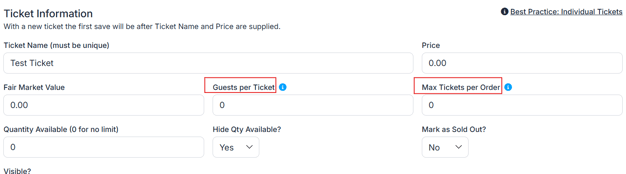
- Tickets per purchase changed to Guests Per Ticket
- added this information bubble: How many guests or seats are included with each ticket purchase. Use 1 for individual tickets, or more for tables and group packages (e.g., 8 for a "Table of 8").
- Max number of tickets that can be purchased to change to: Max Tickets per Order
- This information bubble: The maximum number of tickets a single buyer can purchase in one transaction. This must be set for the option on the ticket page to allow tickets to be purchased via -/+
- This information bubble: The maximum number of tickets a single buyer can purchase in one transaction. This must be set for the option on the ticket page to allow tickets to be purchased via -/+
- Tickets per purchase changed to Guests Per Ticket
- Event Tickets: View Ticket Sales: The Download Guest Report no longer includes column C, “Seating Requests,” since that is no longer an available option.
- Items: Manage Items: Batch update:
- When using batch updates, if you select an action and enter values, then navigate to edit an individual item, those fields will be cleared and will need to be re-entered.
-
When updating items from the grid view, the page will not refresh automatically. Be sure to uncheck the action and remove the word “delete” before proceeding.
-
-
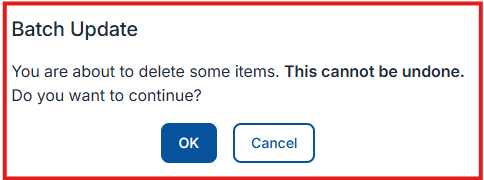
When deleting items, a confirmation popup will appear after selecting the delete action and clicking update.
-
The message will state: “You are about to delete items. This action cannot be undone. Do you want to continue?”
-
- When using batch updates, if you select an action and enter values, then navigate to edit an individual item, those fields will be cleared and will need to be re-entered.
- Landing Page → Action Bars: Removed the option to display items with Hot/Deal tags to reduce confusion, as these tags only appear in the auction 20 minutes before item closing.
- Tags will continue to display as normal within the auction. This change only applies to the Landing Page Action Bar.
- Tags will continue to display as normal within the auction. This change only applies to the Landing Page Action Bar.
Issues Resolved: