---
title: ClickBid 14.260526 Release
description: This month's release brings new tools and improvements across the platform, including a brand new Landing Page Builder, Table Seating enhancements, and several fixes to improve your everyday workflow.
---
[](https://try.cbo.io)
- [Features](https://try.cbo.io/features/)
- [Event and Auction Features](https://try.cbo.io/event-and-auction-features/)
- [Live Video EventStream](https://try.cbo.io/live-video-eventstream/)
- [Raise the Paddle](https://try.cbo.io/paddle-raise-events/)
- [Online Auctions](https://try.cbo.io/online-auction-software/)
- [Silent Auctions](https://try.cbo.io/silent-auction-software/)
- [Event Ticket Sales](https://try.cbo.io/event-ticket-sales/)
- [Mass Messaging](https://try.cbo.io/mass-messaging/)
- [Custom Event Pages](https://try.cbo.io/custom-landing-pages/)
- [Event Registration](https://try.cbo.io/event-registration/)
- [Fundraising Features](https://try.cbo.io/fundraising-features/)
- [Mobile Bidding Software](https://try.cbo.io/mobile-bidding-software/)
- [Online Donations](https://try.cbo.io/online-donation-platform/)
- [Peer to Peer Fundraising](https://try.cbo.io/peer-to-peer/)
- [Recurring Donations](https://try.cbo.io/recurring-donations/)
- [Text-to-Give](https://try.cbo.io/text-to-give-features/)
- Other Features
- [Integrations](https://try.cbo.io/integrations/)
- [AuctionGPT](https://try.cbo.io/auctiongpt/)
- [Dedicated Advisor](https://try.cbo.io/dedicated-advisor/)
- [About](https://try.cbo.io/about/)
- [Success Stories](https://try.cbo.io/success-stories/)
- [Account Management](https://try.cbo.io/account-management/)
- [Resources](https://try.cbo.io/resources/)
- [Partners](https://try.cbo.io/clickbid-partners/)
- [Contact Us](https://try.cbo.io/contact-us/)
- [Pricing](https://try.cbo.io/pricing/)
- [Resources](https://try.cbo.io/resources/)
- [Blog](https://blog.cbo.io)
- [Trust Center](https://clickbid.trust.site/)
- [Resources](https://try.cbo.io/resources/)
- Product
- Our platform
- [In-person auctions](https://try.cbo.io/in-person-auctions)
- [Online auctions](https://try.cbo.io/clickbid-online-auctions/)
- [Raise the paddle event](https://try.cbo.io/raise-the-paddle-event/)
- [Recurring donations](https://try.cbo.io/recurring-donations/)
- [Silent auctions](https://try.cbo.io/silent-auctions/)
- [Integrations](https://try.cbo.io/integrations/)
- Features
- [Custom landing pages](https://try.cbo.io/custom-landing-pages/)
- [Event ticket sales](https://try.cbo.io/event-ticket-sales/)
- [Dedicated Advisor](https://try.cbo.io/dedicated-advisor/)
- [Mass messaging](https://try.cbo.io/mass-messaging/)
- [Mobile bidding software](https://try.cbo.io/mobile-bidding-software/)
- [Live Video EventStream](https://try.cbo.io/live-video-eventstream/)
- [Text-To-Give](https://try.cbo.io/text-to-give/)
- [Account Management](https://try.cbo.io/account-management/)
- [View all features](https://try.cbo.io/pricing/#features)
- Company
- [About](https://try.cbo.io/about/)
- [Blog](https://blog.cbo.io)
- [Resources](https://try.cbo.io/resources/)
- [Contact us](https://try.cbo.io/contact-us/)
- [Pricing](https://try.cbo.io/pricing/)
- Top Resources
- [Nonprofit Silent Auction Software](https://blog.cbo.io/silent-auction-software)
- [How to Plan the Best Silent Auction](https://blog.cbo.io/plan-a-silent-auction)
- [Mobile Bidding Basics: A Mini Guide](https://blog.cbo.io/mobile-bidding-basics)
- [Log in](https://cbo.io/admin/login.php)
- [Get a Demo](https://try.cbo.io/demo)
- [Log in to ClickBid](https://cbo.io/admin/login.php)
- [Get a Demo](https://try.cbo.io/demo/)
# ClickBid 14.260526 Release
May 26, 2026
#### Enhancements:
1. **Butler: Multi-Sale Quick Entry**
1. Volunteers can now sell, check out, and assign quantity items faster than ever by looking a bidder up and clicking on the Select an action>Quick Buy option.
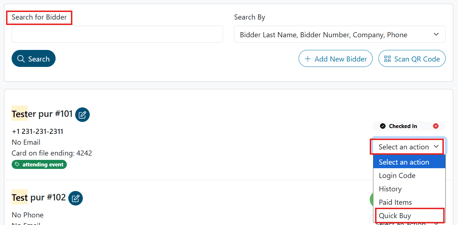
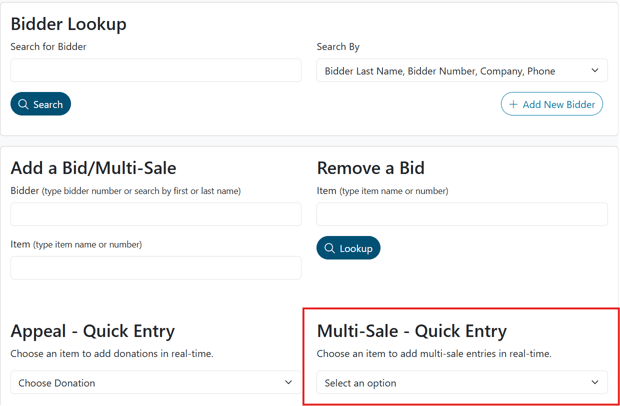
2. The new Quick Entry section on the Butler main page lets staff search for a bidder, select items and quantities, and save purchases in just a few steps. Sold-out items are handled automatically and a red or green card icon makes it easy to see who has a card on file.
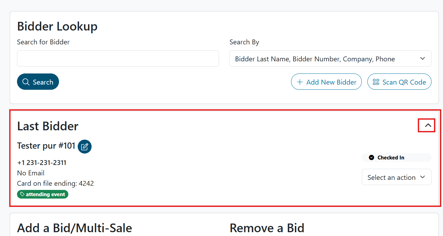
3. The Last Bidder feature keeps things moving by displaying the most recently accessed bidder right below the search field, so volunteers can quickly make changes or add purchases without searching again.
4. For more information and a video please refer to the [how to article.](https://support.cbo.io/how-to-process-fast-purchase-for-quantity-items-using-the-butler)
2. **Landing Page Builder**
1. You can now build and customize your event landing page all in one place. Update your branding, navigation, hero banner, and content blocks while seeing a live preview on desktop, tablet, and mobile as you go.
2. For more information and a video please refer to the [how to article](https://support.cbo.io/how-to-use-the-landing-page-builder-in-clickbid).
3. **Updates to Integrations**
1. **NeonOne **
1. **Export Guests:** Export Guests sends your event ticket holders to Neon CRM as Account records.
2. **Sync Settings:**
1. **Campaign**: Select which Neon CRM campaign this event is tied to. Sales and bidder data will be associated with this campaign when exported.
2. **Auto-Sync**: When enabled, guest and sales data exports to Neon CRM automatically every 5 minutes. This is useful for keeping your records current during a live event without manual effort.
3. **Sync Now**: Triggers a manual sync immediately. Use this if you need to push data right away rather than waiting for the next auto-sync cycle.
4. **Send Attendee Data**: Sends bidder activity and summaries to the ClickBid Attendee custom object in Neon CRM.
- Do not use Send Attendee Data until your event has ended and all auction item and donation checkouts are fully complete. Running this too early may result in incomplete records in Neon CRM.
3. For more information and a video please refer to the [how to article](https://support.cbo.io/neon-integration-guide)
2. **Salesforce**
1. **Salesforce Sync Settings:**This is your starting point for the integration, configure how and when data flows between ClickBid and Salesforce.
1. **Campaign**: Select which Salesforce campaign this event is tied to. Sales, contacts, and attendees will be associated with this campaign when exported.
2. **Auto-Sync**: When enabled, guests and sales export automatically every 5 minutes. This is useful for keeping your records current during a live event without manual effort.
3. **Email Field**: Choose which Salesforce email field on Contact (or Person Account) ClickBid should write bidder email addresses to.
4. **Phone Field**: Choose which Salesforce phone field ClickBid should write bidder phone numbers to.
5. **Default Source**: Pre-fills the Source field on exported sales (e.g., Silent, Live, Fund-A-Need).
6. **Default Purpose:** Pre-fills the Purpose field on exported sales.
7. **Sync Now**: Triggers a manual sync immediately. Use this if you need to push data right away rather than waiting for the next auto-sync cycle.
2. **Advanced:** Expand the Advanced section to manage how ClickBid talks to your Salesforce org under the hood
3. **ClickBid Package:** The ClickBid managed package adds custom objects to your Salesforce org for richer data tracking.
4. **Attendee & Event Data:** Sync event summary data (revenue totals, bidder/attendee counts) and attendee participation back to Salesforce after your event.
5. For more information and a video please refer to this [how to article](https://support.cbo.io/salesforce-integration)
3. **Blackbaud Raiser's Edge NXT**
1. **Settings & Sync Settings**
1. **Campaign:** Select which Raiser's Edge campaign this event is tied to. Sales and bidder data will be associated with this campaign when exported.
2. **Auto-Sync:** When enabled, guests and sales export to Raiser's Edge automatically every 5 minutes. To import contacts, use the Sync Now button.
3. **Default Gift Type:** The gift type applied to exported sales: Donation, Pledge, Recurring Gift, or Other.
4. **Default Fund:** The Raiser's Edge fund all exported gifts should be credited to.
5. **Default Appeal: **The Raiser's Edge appeal to associate with exported gifts.
6. **Receipt Amount:** Choose how the sale amount is recorded in Raiser's Edge:
1. **Purchase Amount:** Records the entire purchase amount as the gift value.
2. **Purchase Amount minus FMV:** Records only the tax-deductible portion of the sale.
7. **Sync Now:** Triggers a manual sync immediately. Use this if you need to push data right away rather than waiting for the next auto-sync cycle
2. **RE NXT Event Linking**: Link this ClickBid event to a Raiser's Edge NXT event to enable participant and fee tracking for ticket exports.
3. **Post-Event Attendee Data Sync**: Send ClickBid attendee post-event data to Raiser's Edge NXT constituent custom field categories. This data should be sent after your event to get the most accurate information.
4. **Export Guests:** Export Guests sends your event ticket holders to Raiser's Edge NXT as constituents, and, if you've linked an RE NXT event, as event participants too.
5. For more information and a video please refer to this [how to article](https://support.cbo.io/-blackbaud-raisers-edge-nxt-integration-guide)
4. **Virtuous**
1. **Settings:** This is your starting point for the integration, configure how and when data flows between ClickBid and Virtuous.
2. **Sync Settings:**
1. **Event**: Select which Virtuous event this ClickBid event is tied to. Sales, attendee, and bidder data will be associated with this event when exported.
2. **Auto-Sync**: When enabled, guest and sales data exports to Virtuous automatically in the background. This is useful for keeping your records current during a live event without manual effort.
3. **Sync Now**: Triggers a manual sync immediately. Use this if you need to push data right away rather than waiting for the next auto-sync cycle.
3. **Sale Export Defaults:** These settings pre-fill the Campaign, Project, and Receipt Amount fields on all sales exported to Virtuous. Setting defaults here saves you from having to select these values individually for each sale.
4. **Custom Collections:** ClickBid uses two Individual-level Custom Collections in Virtuous, one for attendee participation and one for event sales data. These collections must exist in your Virtuous account before syncing can happen.
5. **Export Guests:** Export Guests sends your event ticket holders to Virtuous as contact records.
6. For more information and a video please refer to this [how to article](https://support.cbo.io/virtuous)
4. **Auction Items: Bid Label Update**
When Max Bid is turned off under Software Settings, item labels will now correctly display Set Bid and Current Bid instead of Set Max and Current Max Bid.
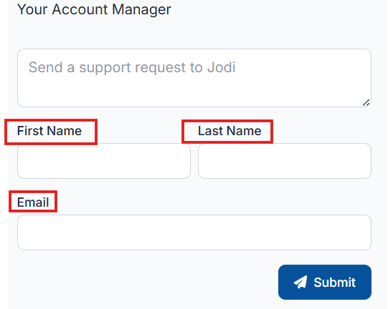
5. **Welcome Page: Account Manager Contact Info** The Account Manager card on the ClickBid Welcome Page now includes a First Name, Last Name, and Email field, making it easier to reach your account manager directly without relying on a shared or volunteer email address.
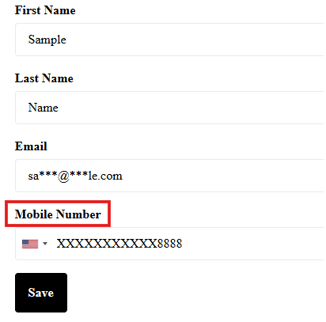
6. **Guest Record: Phone Field Update** The Phone Number field has been renamed to Mobile Number to avoid any confusion and keep things consistent throughout the software.
7. **Donate Item Form: Image Upload** We've added recommended image size guidance to the photo upload field, making it easier for donors to submit the best quality images.
- Select Images: (10 images max, 1080x780 image size for best results, 20 MB total size max for all images)
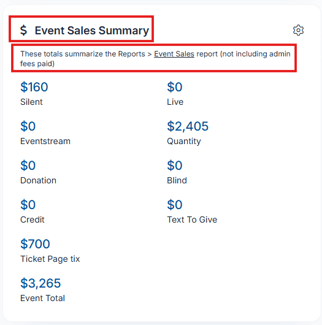
8. **Welcome Page: Event Sales Summary** The Event Totals section has been renamed to Event Sales Summary and the description has been updated to make it clear where the numbers are coming from. A clickable link now takes you directly to the Event Sales report with one click.
9. **Table Seating: Updates and Improvements** We've made several improvements to table seating to make it easier to manage guests and bidders.
- **Bidder Table Assignments** When a bidder is linked to multiple guests, table assignments can now be updated from the Manage Bidders or Butler page, as long as all guests are currently assigned to the same table. If guests are at different tables, the update will need to be made from the Manage Guests page
- **Guest Selection** Selecting guests has been simplified. A single click now toggles a guest on or off, and a "Clear" button makes it easy to start over without losing your place.
- **Print Your Floor Plan** You can now print your table seating layout, which includes seating stats, a full guest list organized by table, and how many guests are assigned to each table.
- Deactivate Table Seating
Table seating can now be deactivated if needed. Any tables that were already set up can be edited or reverted as well.
- For more information and video please refer to this [how to article](https://support.cbo.io/table-seating)
#### Issues Resolved:
1. Auction: "Deal" Tag Display Fixed an issue where the "Deal" tag was showing on items without a Fair Market Value assigned.
2. Bidders: Table Number Sorting Table numbers and names in Manage Bidders now sort in correct numeric order.
3. Auction Settings: Silent Auction Winning Text Messages Winners now receive one combined text message listing all items won, rather than a separate message per item.
4. Content Editor: Saving Issues Fixed an issue where changes made in the content editor were not always saving correctly.
5. Email Invoice: PDF Attachment in Outlook Invoice attachments now open correctly as PDFs in Microsoft Outlook.
6. Items: Donation Item Warning: The system now checks for Donation Items on page load. If one is detected and the required checkout settings are off, a red warning displays right away.
7. Create New Event: Ticket Sales Checkbox
The "Move all ticket sales from the selected event to the new event" checkbox has been moved back to its correct location next to the action it applies to.
## Share:
###### Get The Latest Updates
##### Subscribe To Our Monthly Newsletter
No spam, notifications only about new products, updates.
[Subscribe](https://blog.cbo.io/release-notes/clickbid-14.260526-release#subscribe)
[Previous ClickBid 14.260427 Release](https://blog.cbo.io/release-notes/clickbid-14.260427-release)
[Next ClickBid 14.260622 Release](https://blog.cbo.io/release-notes/clickbid-14.260622-release)
## Related Posts
## Become a subscriber
Subscribe to our blog and get the latest updates straight to your inbox.
ClickBid
ClickBid’s Event Fundraising Platform is the premier software for charities, specializing in ticket sales, event promotions, and auctions.
[Pricing](https://clickbidonline.com/pricing/)
[Schedule a demo](https://try.cbo.io/demo/)
- [Resources](https://try.cbo.io/resources/)
- [Blog](https://blog.cbo.io)
- [Product Roadmap](https://try.cbo.io/product-roadmap/)
- [Comparison Calculator](https://try.cbo.io/calculator/)
- [Heads or Tails Generator](https://try.cbo.io/heads-or-tails-generator/)
- [Submit a Referral](https://try.cbo.io/referral/)
- [Features](https://try.cbo.io/features/)
- [Event and Auction Features](https://try.cbo.io/event-and-auction-features/)
- [Live Video EventStream](https://try.cbo.io/live-video-eventstream/)
- [Raise the Paddle](https://try.cbo.io/paddle-raise-events/)
- [Online Auctions](https://try.cbo.io/online-auction-software/)
- [Silent Auctions](https://try.cbo.io/silent-auction-software/)
- [Event Ticket Sales](https://try.cbo.io/event-ticket-sales/)
- [Mass Messaging](https://try.cbo.io/mass-messaging/)
- [Custom Event Pages](https://try.cbo.io/custom-landing-pages/)
- [Event Registration](https://try.cbo.io/event-registration/)
- [Fundraising Features](https://try.cbo.io/fundraising-features/)
- [Mobile Bidding Software](https://try.cbo.io/mobile-bidding-software/)
- [Online Donations](https://try.cbo.io/online-donation-platform/)
- [Peer to Peer Fundraising](https://try.cbo.io/peer-to-peer/)
- [Recurring Donations](https://try.cbo.io/recurring-donations/)
- [Text to Give](https://try.cbo.io/text-to-give-features/)
- Other Features
- [Integrations](https://try.cbo.io/integrations/)
- [AuctionGPT](https://try.cbo.io/auctiongpt/)
- [Dedicated Advisor](https://try.cbo.io/dedicated-advisor/)
- Company
- [About us](https://try.cbo.io/about)
- [Blog](https://blog.cbo.io)
- [Legalese](https://try.cbo.io/legalese/)
- [Contact us](https://try.cbo.io/contact-us/)
- [Trust Center](https://clickbid.trust.site/)
- [API Documentation](https://documenter.getpostman.com/view/28996908/2s9XxzuCTq)
##### Our Office
800 East Ellis Suite 533
Norton Shores, MI 49441
Phone: (800) 513-5097
Fax: (231) 799-4999
© 2002 - 2026. All rights reserved.
```json
{
"@context" : "https://schema.org",
"@type" : "BlogPosting",
"author" : {
"@type" : "Person",
"name" : "Jodi Merkins",
"url" : "https://blog.cbo.io/release-notes/author/jodi-merkins"
},
"dateModified" : "2026-05-26T11:07:21.008Z",
"datePublished" : "2026-05-26T11:07:21.000Z",
"headline" : "ClickBid 14.260526 Release",
"mainEntityOfPage" : {
"@id" : "https://blog.cbo.io/release-notes/clickbid-14.260526-release",
"@type" : "WebPage"
},
"publisher" : {
"@type" : "Organization",
"logo" : {
"@type" : "ImageObject",
"url" : "https://blog.cbo.io/hubfs/clickbid_logo_22-1.png"
},
"name" : "ClickBid"
}
}
```